
VIOSO Anyblend VR&SIM and VIOSO Integrate Plus let you export your warp and blend calibrations directly to the Quantum3D simulator MANTIS v4.0.
Integration outline:
Table of Contents
1. In VIOSO Core
1. Perform a camera-based 3D calibration
Using Anyblend VR&SIM or VIOSO Integrate Plus, follow the workflow in this guide: 3D calibration
2. Export your mapping in the VWF format:
-
- From the menu bar, go to File > Export Mapping
- Select your compound display.
- Select the VWF format.
- Check the 3D box.
- Choose a file name and path.
- Click on Export.
2. In Mantis
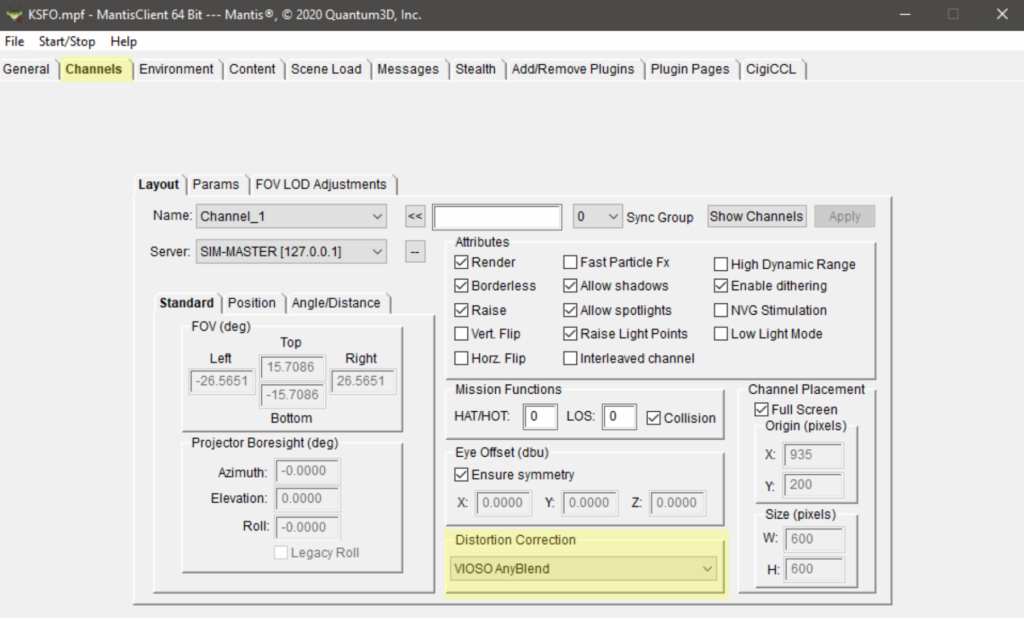
1. Configure your channels to use VIOSO distortion correction
- From the MANTIS main window, go to the Channels tab > Layout.
- For each of your channels, select VIOSO Anyblend from the Distortion Correction options.
2. Configure VIOSOWarpBlend.ini
- From your MANTIS data folder
(MANTIS_NLDC_DATA_FOLDER), open the fileVIOSOWarpBlend.ini - Edit the following parameters to match your setup:
– calibFile: path to your calibration export file.
– [Channel_Name]: name of the MANTIS channel, you can find these in the simulator’s Network tab under discover.
– calibIndex: the display number in the calibration. - Save and close the file.
Example Setup:
3X channel curved screen
The example contains the following:
StartMantis.cmda command line file to start Mantis server and listeners and assign them to displays.StopMantis.bata batch file to stop all instances of Mantis.VIOSOWarpBlend.iniconfiguration file for the VIOSO plugin.CalibrationExport.vwfexported calibration from the VIOSO software.